
A Gallery shows your school's photos and videos side by side, sorted into categories for visitors to browse, watch as a slideshow and download.
Upload a whole event's photos and videos in one go and name them as they arrive. Photos are on your website straight away, and videos follow once they're ready. Galleries look great on computers, phones and tablets.
Adding a Gallery
Choose Gallery from the Add a New menu in the Construction Zone, then give your Gallery a name and a description.
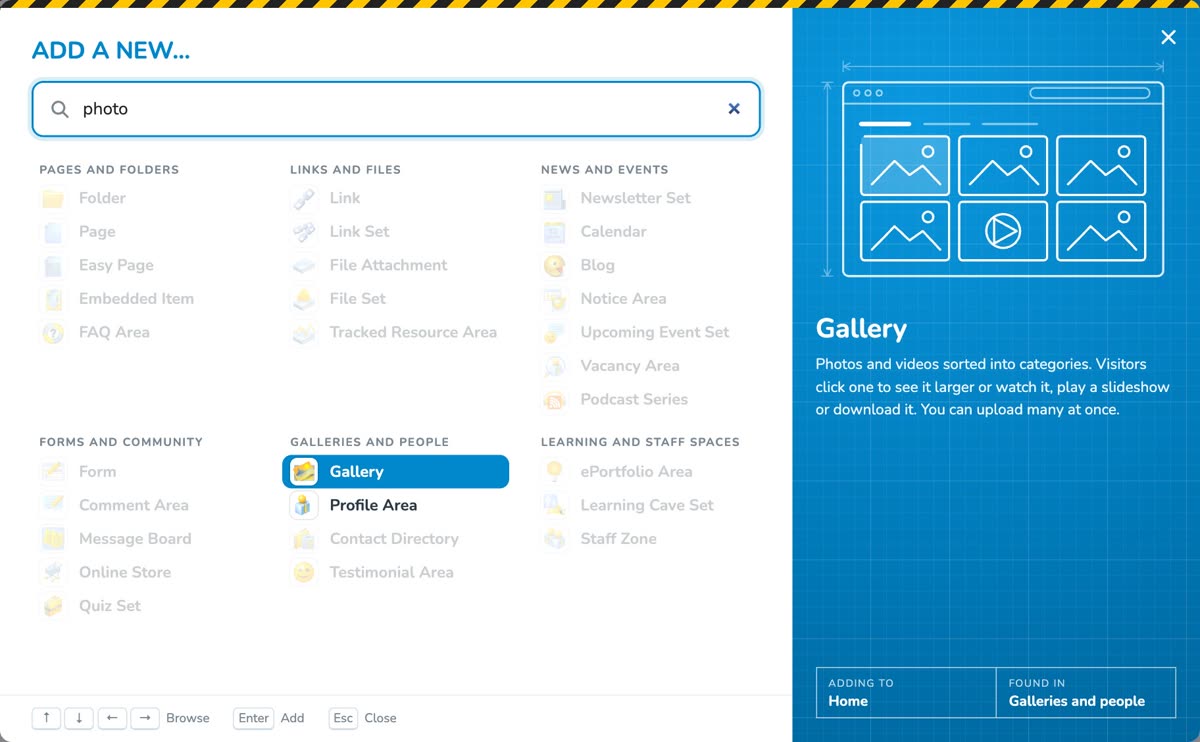
A Gallery keeps its photos and videos in categories, one for each event or topic, such as a trip, a sports day or Book Week.
Click your Gallery's name, then Add a New Category. Give the category a name and a description. Click its name to start adding photos and videos.
Adding Photos and Videos
Click Add Photos and Videos and drop in as many files as you like, or choose them from your device. You can add more while the first ones are still uploading.
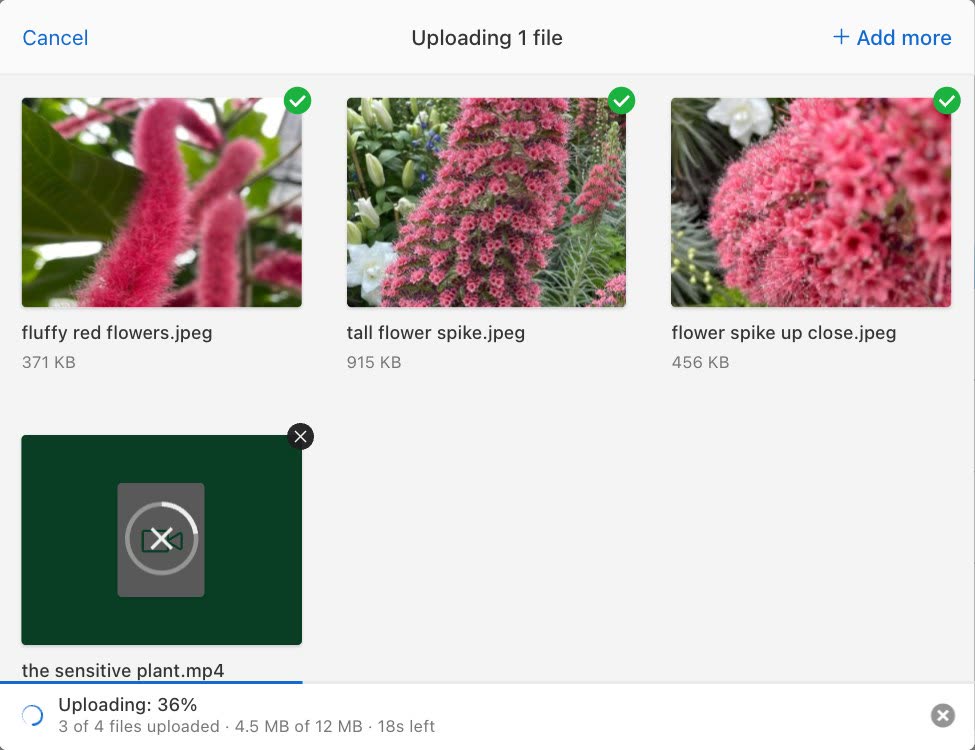
Photos can be up to 100 MB each, in JPEG, PNG, GIF, WebP or HEIC. Videos can be up to 2 GB each, in MP4, MOV, M4V, 3GP or WebM.
Each photo and video joins the list as soon as it arrives. Type its name and description straight into the list. Each one saves as you move on, so you can press Tab to work through a whole batch while the rest upload.
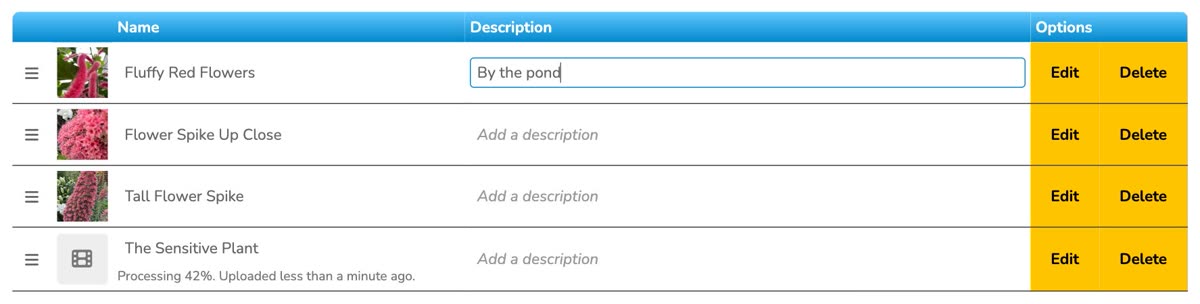
A file someone has named, such as sports day.jpg, gives its name to the photo. Names cameras make up, such as IMG_1234, are left for you to fill in. To change the order, drag the handle on the left of a row up or down.
Videos
We convert each video you upload so it plays smoothly on every computer, phone and tablet. HDR videos from iPhones are adjusted so their colours look right everywhere, and we remove the location your phone recorded.
The list shows how each video is going, and the video appears on your website once it's ready. Most take a few minutes. If a video can't be converted, its row tells you why.
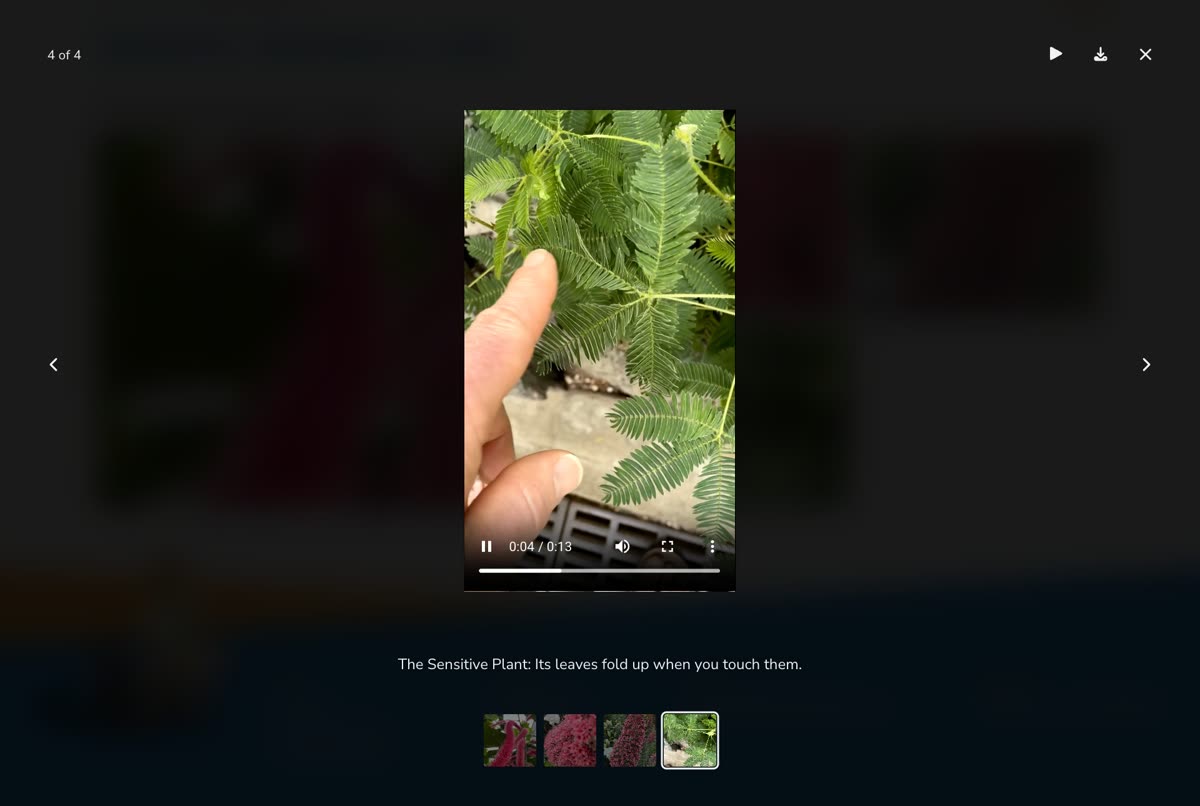
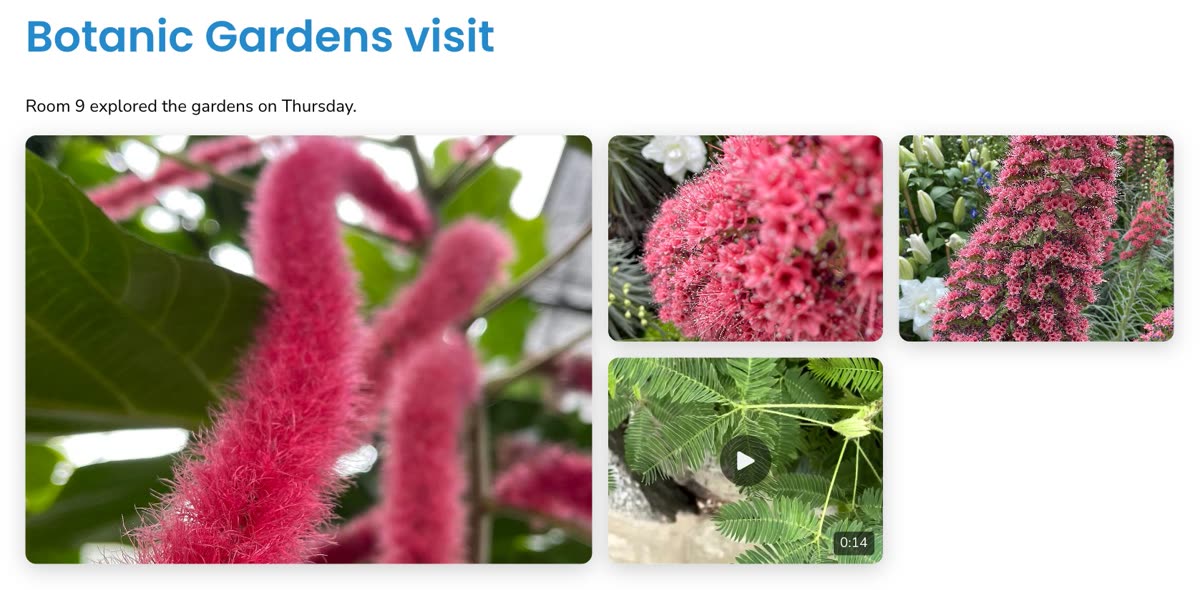
On your website a video shows a play button and its length. It plays in the same viewer as your photos.
Viewing Your Gallery
Your Gallery shows each category with one of its photos or videos as a cover, and how many of each it holds.
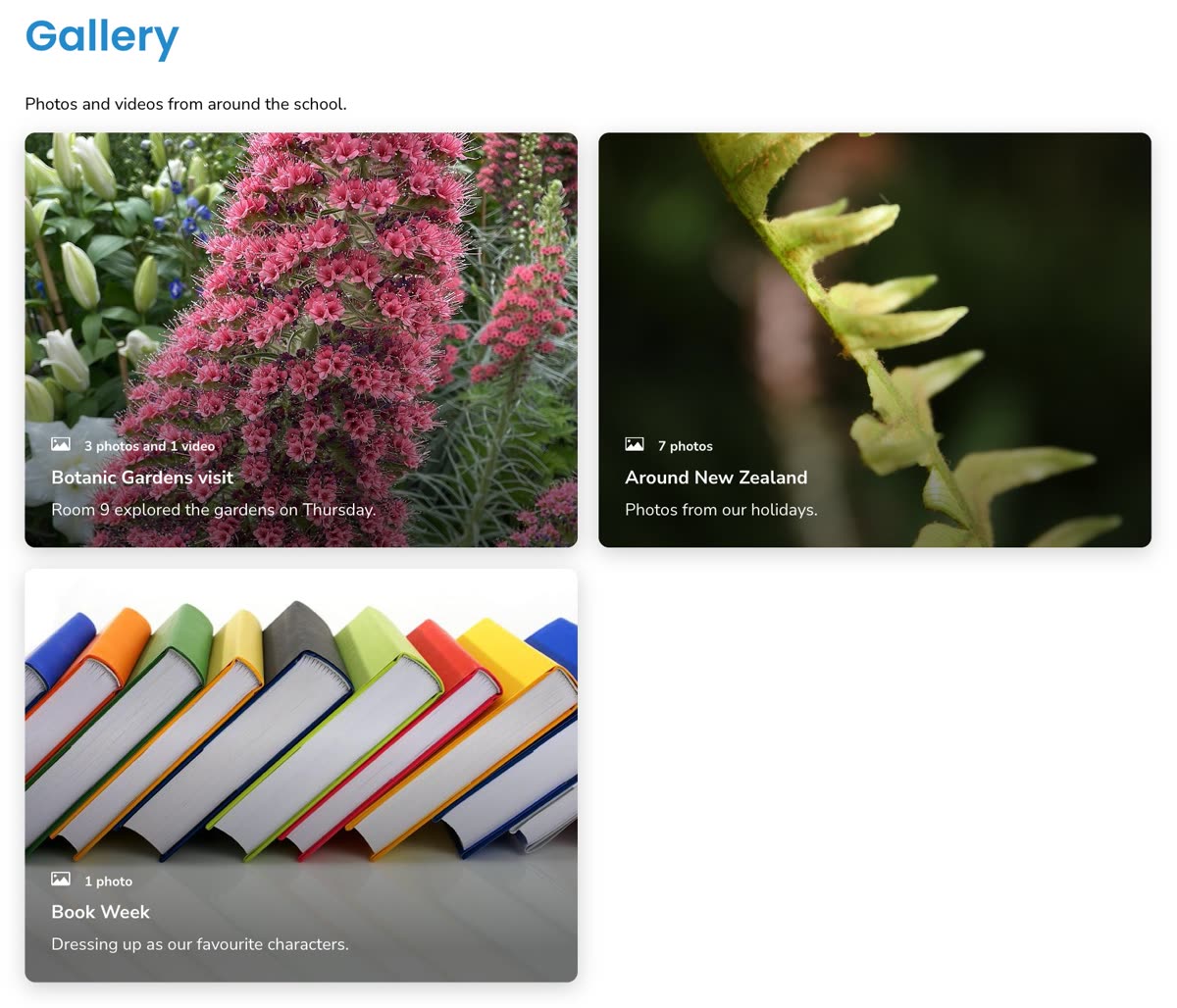
Visitors click a category to see everything in it, then any photo or video to open it full screen. From there they can move through the category, zoom in on a photo, play a slideshow and download what they're looking at.
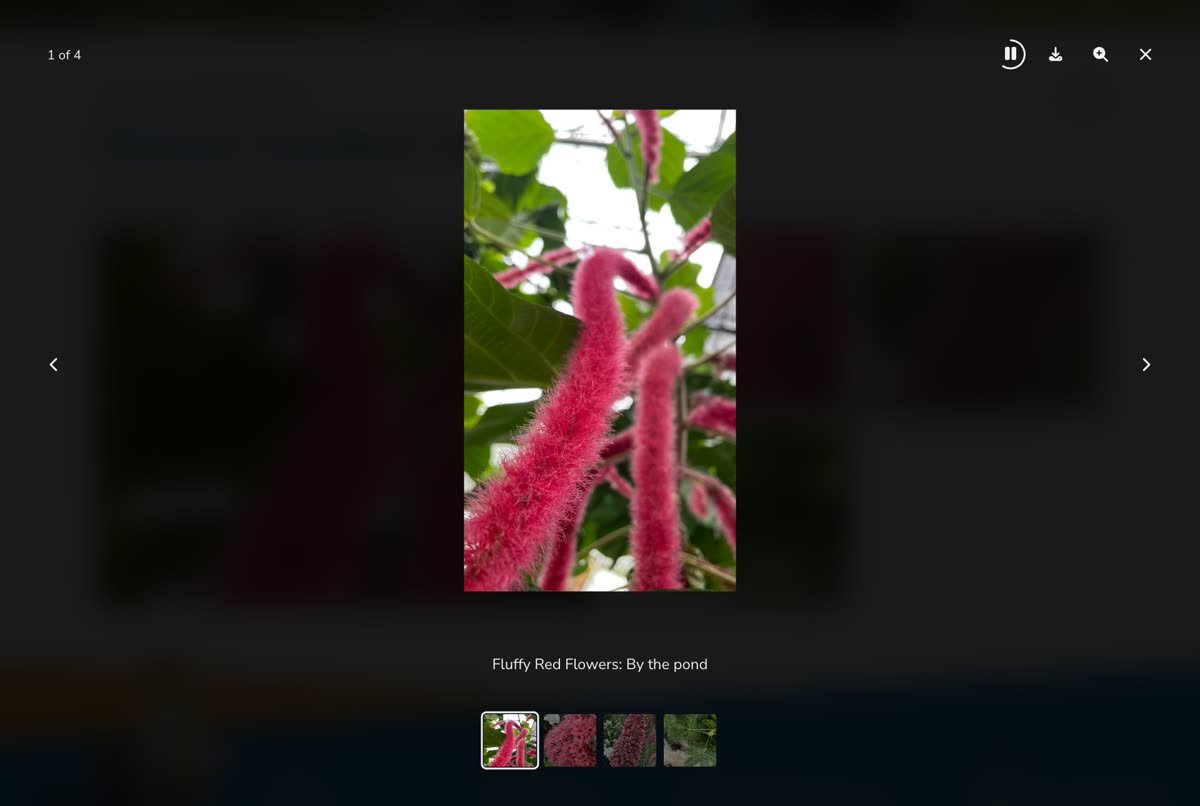
The slideshow shows each photo for four seconds and plays each video to the end before moving on.
RSS Feeds
Every Gallery and category has an RSS feed, so visitors can follow along as you add to them.